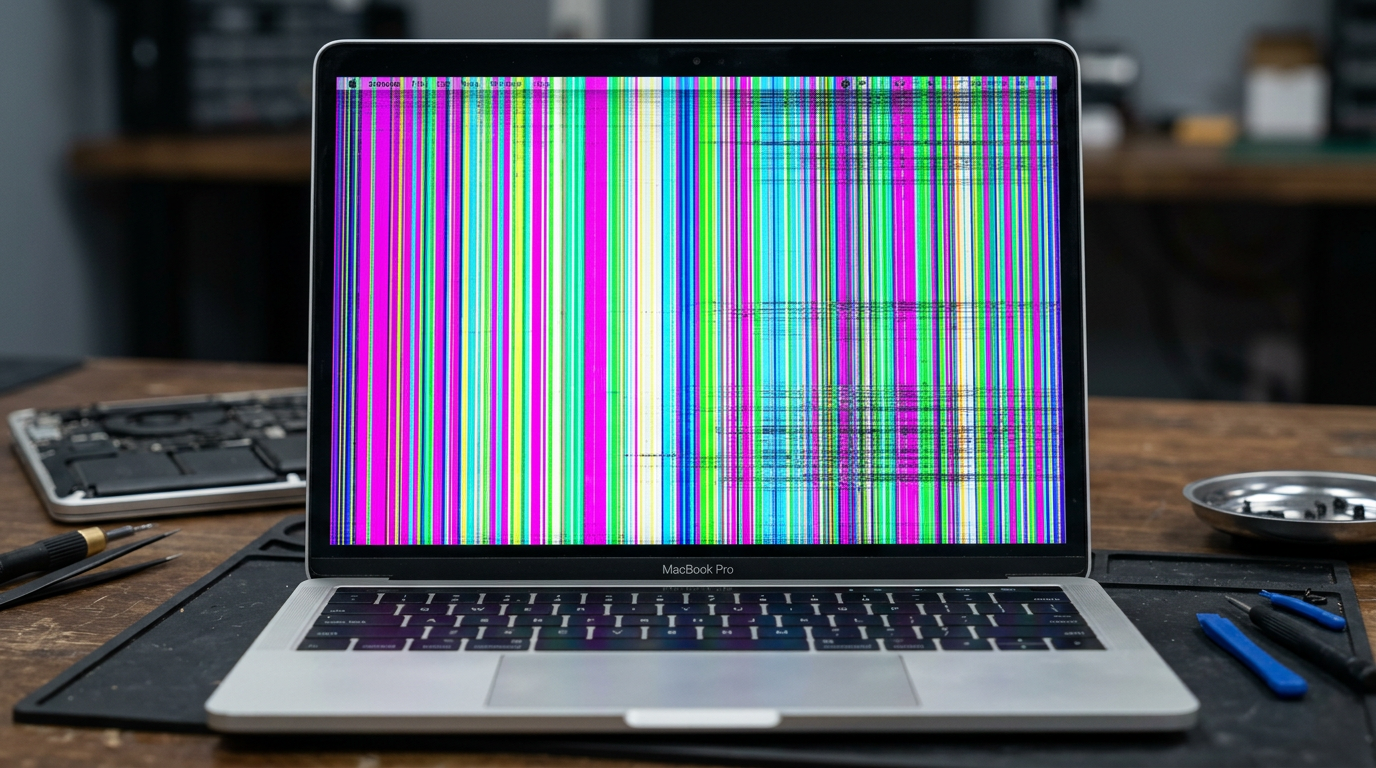
MacBook Screen Flickering?
Lines, glitches, stage light effect. We fix flexgate and display issues at the component level.
Quick Diagnosis
Screen flickering on a MacBook can range from a minor software glitch to a hardware failure in the display cable, backlight circuit, or GPU. If the flickering changes when you adjust the lid angle, flexgate (display cable failure) is the most likely cause. Random colored lines or artifacts that appear regardless of lid angle point to a GPU or display panel issue.
Common Causes
Here are the most frequent reasons for this problem, ranked by how often we see each one.
Flexgate (display flex cable wear)
CommonThe display cable in 2016 to 2019 MacBook Pro models is too short and wears out from opening and closing the lid. Early symptoms include a "stage light" glow at the bottom of the screen, progressing to flickering and eventual blackout.
GPU or graphics failure
LikelyDiscrete GPU failures or integrated graphics issues can cause colored lines, artifacting, screen tearing, or random flickering. Common on older models with AMD or NVIDIA GPUs.
Damaged LCD panel
PossiblePhysical impact, pressure damage, or manufacturing defects in the LCD panel can cause flickering, dead pixels, or colored lines in specific areas.
Staingate (anti-reflective coating)
PossibleThe anti-reflective coating on Retina displays can degrade, causing blotchy spots that look like screen damage. This is cosmetic but annoying.
Software or driver issue
PossibleA corrupted display driver, macOS bug, or incompatible app can cause screen flickering. Booting in Safe Mode helps rule this out.
Try These Steps First
Before bringing your Mac in, try these diagnostic steps at home.
Test with lid angle changes
Slowly open and close the lid while watching the screen. If the flickering or stage light effect changes with the angle, flexgate (cable failure) is very likely.
Connect an external monitor
If the external display is fine but the built-in screen flickers, the issue is the display or cable, not the GPU.
Boot into Safe Mode
If flickering stops in Safe Mode, a software conflict or driver issue is likely. Check for macOS updates and recently installed apps.
Check for physical damage
Look for cracks, pressure marks, or spots on the screen. These indicate panel damage that requires replacement.
What WarriorMac Does Differently
For flexgate, we replace the worn display cable or the full display assembly depending on the model and repair economics. For GPU issues, we perform component-level micro-soldering. For panel damage, we replace the display with a genuine Apple panel that restores True Tone and all display features. Every repair includes a warranty.
Repair Options & Pricing
Flexgate cable repair
Replacement of the worn display flex cable on 2016 to 2019 MacBook Pro models.
Display panel replacement
Full display assembly replacement with genuine Apple Retina or Liquid Retina XDR panel.
GPU repair
Board-level micro-soldering for GPU or graphics controller failure.
Anti-reflective coating fix
Staingate coating removal and restoration for affected Retina displays.
Frequently Asked Questions
What is flexgate on a MacBook?
How much does it cost to fix a flickering MacBook screen?
Will Apple fix flexgate for free?
Related Services
Still Not Fixed?
Bring it to us or ship it in. Free diagnosis, no-fix-no-fee guarantee, 25 years of experience.