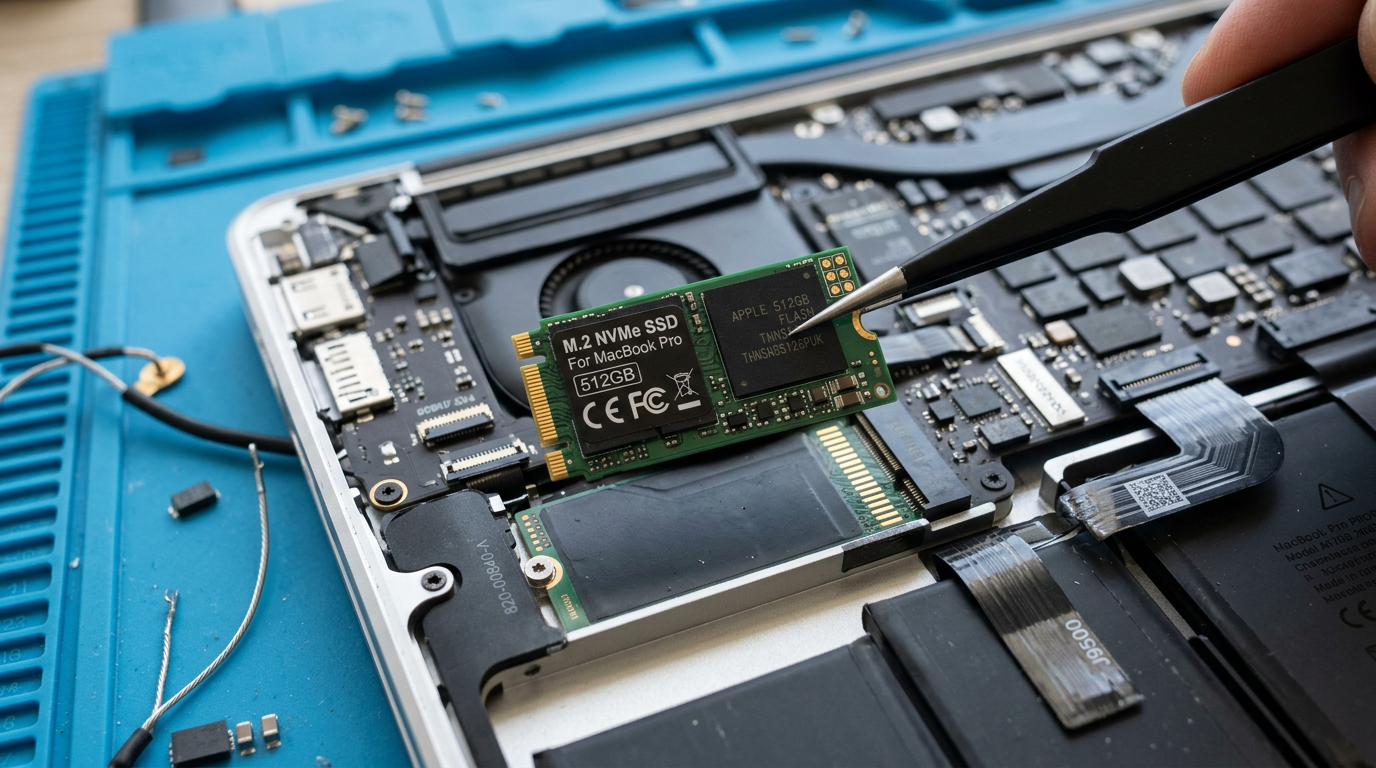
MacBook SSD Upgrade
Running out of storage? We upgrade your Mac's SSD for more speed and space.
Quick Diagnosis
If your Mac constantly shows "Startup Disk Full" warnings, runs slowly, or cannot install macOS updates due to storage space, an SSD upgrade can solve the problem and dramatically improve performance. Older MacBooks (pre-2016 models) with removable SSDs can be upgraded to larger, faster drives. Newer models with soldered storage require external solutions or, in some cases, board-level modification.
Common Causes
Here are the most frequent reasons for this problem, ranked by how often we see each one.
Original SSD too small
CommonMany MacBooks shipped with 128GB or 256GB SSDs that fill up quickly with photos, videos, applications, and macOS updates.
Aging HDD in older iMac or MacBook
CommonOlder iMacs and MacBooks came with spinning hard drives (HDD) that are dramatically slower than SSDs. Upgrading to an SSD is the single best performance improvement for these machines.
SSD failure
PossibleA failed or failing SSD needs to be replaced to restore the Mac to working condition. This also provides an opportunity to upgrade to a larger capacity.
Try These Steps First
Before bringing your Mac in, try these diagnostic steps at home.
Check available storage
Go to Apple menu > About This Mac > Storage. This shows how much space is used and available, and what types of files are consuming storage.
Determine your Mac model
Go to Apple menu > About This Mac to find your model and year. This determines whether the SSD is upgradeable or soldered.
Clean up storage first
Before upgrading, try freeing up space: empty Trash, remove unused apps, clear browser caches, move large files to external storage.
What WarriorMac Does Differently
For MacBooks with removable SSDs (generally pre-2016 models), we replace the original drive with a larger, faster SSD and migrate all your data. For iMacs, we replace the spinning hard drive with a high-performance SSD (often adding a blade SSD behind the logic board for maximum speed). All data is migrated and the Mac is tested before return.
Repair Options & Pricing
MacBook SSD upgrade
Replacement of the original SSD with a larger capacity drive, including data migration.
iMac HDD to SSD upgrade
Replace the spinning hard drive in an iMac with a high-performance SSD. Dramatic speed improvement.
iMac blade SSD addition
Add a blade SSD behind the iMac logic board for maximum speed while keeping the original drive for storage.
Failed SSD replacement
Replace a failed SSD with a new drive and data recovery from the old drive when possible.
Frequently Asked Questions
Can I upgrade the SSD in my MacBook?
How much does a MacBook SSD upgrade cost?
Will I lose my data during an SSD upgrade?
Can you upgrade the SSD in an iMac?
Related Services
Still Not Fixed?
Bring it to us or ship it in. Free diagnosis, no-fix-no-fee guarantee, 25 years of experience.